

Cocoapod + Swift : Making Pod with Swift
With this post I would be guiding you to make your own cocoapod with swift, that you can use in your project and help other developer save hours by using your code that being te...

I have heard about “Google Material Design” while looking for something new to learn. I like there concepts of applying some physics to the layer or elements to screen. Even though I am not through and through with idea as its lot to soak in.
Here are the link which would introduce you to Google Material Design https://material.google.com
If you want to know more about Google Material Design and things are happening with it or who is using in their app please visit : https://design.google.com/
Without further delay lets get started.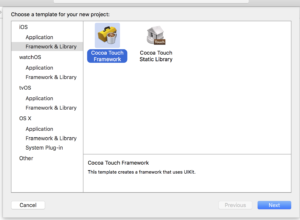
- First of all create a new project.
- Under iOS Section on left hand side select Framework & Library
- In right side select Cocoa Touch Framework and Next
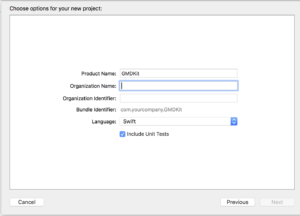
- On next screen give Project Name and other required inputs. In our case we are writing GMDKit (Google Material Design Kit)
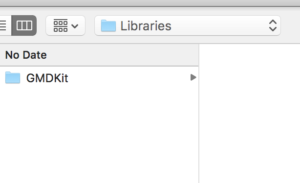
- Next save the project on disk. I would recommend creating Libraries Directory under your Documents directory. But you can create it anywhere, it really doesn’t matter.
 Project is created now we are up ready for the next step that is CocoaPod. Ye Ye :)
CocoaPod or Pod these terms are being using interchangeably. Pod is Ruby gem so let check if that is installed on our system. [shell]pod —version[/shell]
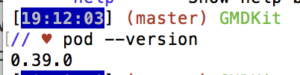
if you get any version back like above then you have it installed. (Read docs on cocoapods.org if you are not sure that your version is too old). In case it says that command not found or something like that you might want to install Cocoapods on your mac by issuing following command. [shell]sudo gem install cocoapods[/shell] Now that we have pods installed in our system. lets do following: [shell] #open terminal and cd to your project directory pod spec create yourProjectname open -a Xcode YourProjectName.podspec [/shell]
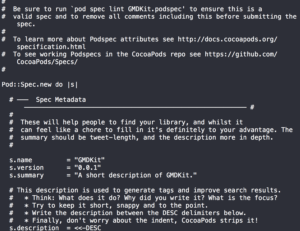
Above is preview of how my podSpcec file looks like. Feel free to glance through this file. Everything is straightforward to understand. podspec file tell Cocoapods about everything that it needs to know about our pod lib.
lets get our hands dirty with this file. I am putting complete podspec file here to get complete picture. For the sake of brevity I have removed most of the comments. Please note this is a ruby file. so be careful when editing. Stay as close as you can file below any wrong space, quote or new line would fail validation. It would only slow you down.
[shell] Pod::Spec.new do |s| s.name = “GMDKit” s.version = “0.0.1” s.summary = “GMDKit is collections of iOS Controls which are implementation of Google Material Design.” s.description = < “MIT”, :file => “LICENSE” } s.author = “Alok Choudhary” s.social_media_url = “http://alokchoudhary.com” s.platform = :ios, “8.0” s.source = { :git => “https://github.com/alokc83/GMDKit.git”, :tag => ”#{s.version}” } s.source_files = “GMDKit/*.{swift,h}” s.framework = “UIKit” # s.frameworks = “SomeFramework”, “AnotherFramework” s.requires_arc = true end [/shell]
When you are done with the podspec file. It’s always a good idea to run lint on the podspec file to check if its good. [shell] pod lib lint or pod spec lint GMDKit.podspec [/shell]
You should see success message in green like below. If not handle it accordingly. Most of the cases its typo error. 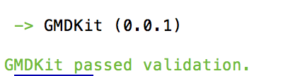 Considering you are still in the same directory in your terminal. [shell] cd ~/Documents/Libraries/ git init git add . git commit -m “Initial commit: podspec file added” git tag 0.0.1 git remote add origin git push -u origin master —tags [/shell]
Make sure that all the files are added to the git by doing **git status** then do **git push -u origin master --tags**
Following commands are to push podspec to your own private specs repo. [shell] pod repo add GMDKit https://github.com/alokc83/GMDKit.git pod repo push GMDKit GMDKit.podspec [/shell]
If we want to make repo publicly available, we need to push our podspec file to the central trunk of the cococpods. So that it can be found when someone try to search for it or you want it to make available for other developer for their use.
You need to register session with the pod trunk first. Cocoapods.org has awesome getting started guide that you can follow here
It’s simple command that you need to run and verify through email. [shell]pod trunk register alok.XXXX@gmail.com ‘Alok XXXXXXXX’ —description=‘MyMacBookPro’[/shell]
You should receive email shortly after email. Click on it abd you should land to following page. 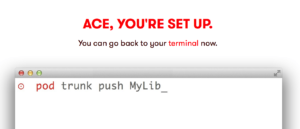
When you have pushed podspec to the Cocoapods trunk. It should spit out a Data url. if you open that url you should see JSON like below [shell] pod trunk push GMDKit.podspec [/shell]
[shell] { “name”: “GMDKit”, “version”: “0.0.1”, “summary”: “GMDKit is collections of iOS Controls which are implementation of Google Material Design.”, “description”: “GMDKit is collections of iOS Controls which are implementation of Google’s Material Design”, “homepage”: “https://github.com/alokc83/GMDKit”, “license”: { “type”: “MIT”, “file”: “LICENSE” }, “authors”: “Alok Choudhary”, “social_media_url”: “http://alokchoudhary.com”, “platforms”: { “ios”: “8.0” }, “source”: { “git”: “https://github.com/alokc83/GMDKit.git”, “tag”: “0.0.1” }, “source_files”: “GMDKit/*.{swift,h}”, “frameworks”: “UIKit”, “requires_arc”: true } [/shell]
Your pod would take sometime while its being replicated to cocoapods servers. GMDKit took around 4 hours before it was showing up in cocoapods search. Meanwhile start developing cool feature in your library that other can take benefits from. Happy coding
Consider reading following links about the licensing
https://tldrlegal.com/
https://blog.codinghorror.com/pick-a-license-any-license/