

When Time Machine backup is awfully slow ...
Well if you find yourself in situation like where there is no existing Time Machine backup and you are taking it first time. Let me tell you it's going to be very slow as it is...
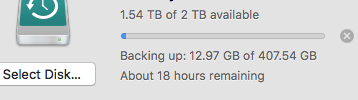 Well if you find yourself in situation like where there is no existing Time Machine backup and you are taking it first time. Let me tell you it’s going to be very slow as it is designed to run in background so that it’s not interfering in case you are working on your Mac at the same time. But There could be a scenario where you never took backup or setup the Time Machine and you want this backup to move faster.
By design Time Machine suppose to run at the lowest priority so that backupd aka “backup deamon” aka background process is not stealing CPU power from other processes that need to be responsive to user. To increase the priority of Time Machine process called backupd. We need to undo the throttling on this process. Let’s do it. open terminal and run following command. Please provide admin password when prompt for: [shell] sudo sysctl debug.lowpri_throttle_enabled=0 [/shell]
When you run this command you will see backup process speeding up in Activity Monitor and Time Machine Preferences.
Till now this solution is only good for current session of Mac. If you reboot your system. This change will be lost. If going forward you are planning to keep your Time Machine plugged in. I would recommend not to make this change permanent which means persisting among restart of your Mac. If above is not your case please process and do following changes. We can make this change persistent through launch daemon. To know more about launchDaemons. Please follow the link to Apple’s website about creating Launchd Jobs aka Launch Daemons. https://developer.apple.com/library/mac/documentation/MacOSX/Conceptual/BPSystemStartup/Chapters/CreatingLaunchdJobs.html
I will show you editing file both nano and vi way. Pick either one. For Vi Editor lovers: Open terminal and cd to LaunchDaemons as shown below: [shell] $ cd /Library/LaunchDaemons/ $ sudo vi FastTimeMachineBackup.plist [/shell]
Type “i” to turn on insert mode. Then past following xml content in the plist file.
Content for Time Machine backup plist
[xml] Label nothrottle ProgramArguments /usr/sbin/sysctl debug.lowpri_throttle_enabled=0 RunAtLoad [/xml] Now press esc to go to command mode. Now if you type “:wq”. It should appear in the bottom left corner. If that’s true, you are about to write(w) and quit(q) vi.
For Nano lovers: Open terminal and cd to LaunchDaemons as shown below: [shell] $ cd /Library/LaunchDaemons/ $ sudo nano FastTimeMachineBackup.plist [/shell] Copy above mention xml content and paste in nano editor. Now do Control+O to Write(O)ut the file then Control+X to E(X)it the Nano editor. As this file inside the LauchDaemons directory. Everytime your Mac booting up. This file would be loaded like other daemons.
Enjoy Faster backup :)